
How it works
The Compliance menu on your myrelaymed dashboard brings together three tools for managing your lab's QC process.
- Lot Configuration — define expected reference ranges for each reagent lot.
- Quality Controls — review QC results sent automatically from your devices.
- Levey-Jennings — visualize trends over time to spot drift or shifts early.
Typical flow: add a lot configuration → QC results arrive and are matched automatically → review and accept or reject → monitor trends in Levey-Jennings.
Setting up a Lot Configuration
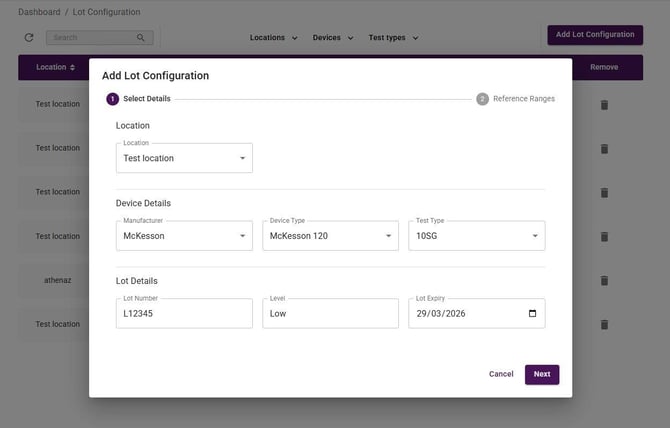
Go to Compliance > Lot Configuration and select Add Lot Configuration. There are two steps.
Step 1 — Select Details
Select the location, manufacturer, device type, and test type. Then enter the lot number and level as printed on the box, and the expiry date.
Step 2 — Reference ranges
For each analyte, choose Range (Low/High), Value (exact expected value), or N/A. To include this lot in Levey-Jennings charts, toggle Enable Levey-Jennings — the Target Mean and 2 SD can be auto-calculated from your Low/High values, or entered directly.
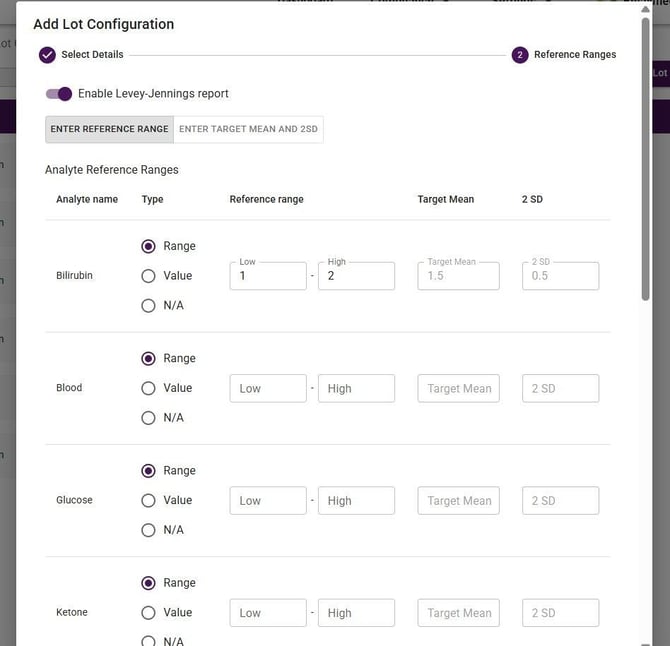
Once saved, the system automatically links any existing QC results that match this lot — no manual matching needed.
Note: Levey-Jennings charts are only available for analytes with a numeric reference range (Range type). If you've enabled Levey-Jennings, make sure at least one analyte is set to Range before saving.
Reviewing QC Results
Go to Compliance > Quality Controls. Results are grouped into tabs: To Review, Accepted, Rejected, and All.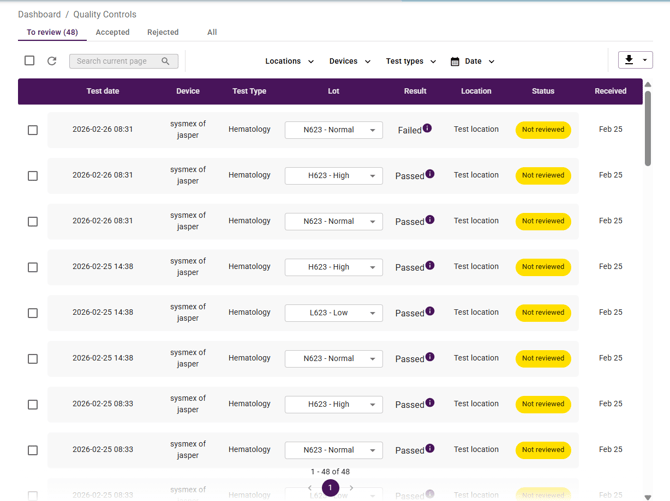
Expand any row to see each analyte's measured value against its reference range. Accept or reject from there, or tick multiple rows to bulk accept/reject.
Generating a Levey-Jennings Chart
Go to Compliance > Levey-Jennings. You'll need at least one lot configuration with Levey-Jennings enabled before a chart can be generated.
- Select a device, then a test type.
- Choose a date range (last 7 days, last 30 days, or custom).
- Select Generate Report.
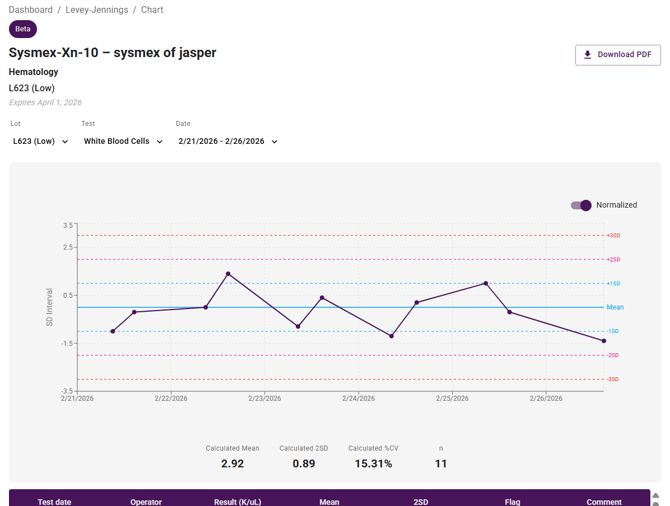
Use the Normalized toggle to switch between Z-scores (standard deviations from mean) and raw values. Hover any data point to see the exact value. Download a PDF report using the Download PDF button.
Levey-Jennings is currently in beta — we'd love to hear how it's working for you. Share your feedback via the in-app chat box, raise a support ticket, or contact us directly.
Notes:
Each lot configuration requires the following unique combination of fields:
- Location
- Device
- Test type
- Lot number
- Level
No duplicate configurations are allowed. If all five fields match an existing configuration, the system will prevent a new one from being created.
Lot number and level are treated as a unique pair. A new kit level will always correspond to a new lot entry — so if a kit is updated to a new level, a new lot configuration will need to be created for it.