2. Requesting new notification events
Notification preferences
The notification preferences page allows you to opt into different kinds of notifications and specify how you would like to receive them. Notifications are opted out by default.
Navigating to the notifications preferences page
To get to the notifications preferences page you can first open the notifications sidebar by clicking the bell icon in the top right corner of the portal.
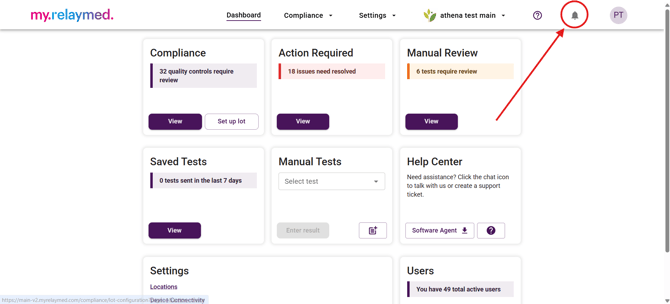
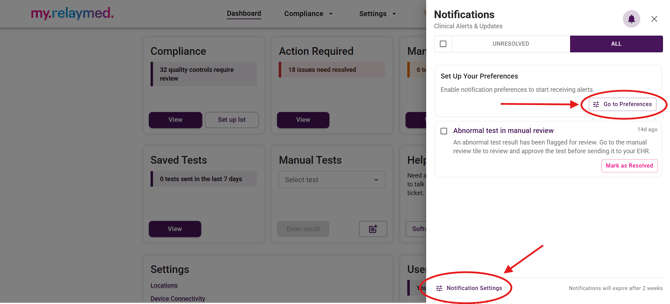
Then you can click on the "Notifications Settings" button at the bottom of the sidebar. If you have no portal notifications enabled, there will be a default notification in your notifications sidebar prompting you to edit your notification preferences. In that case, clicking the "Go to Preferences" button will also take you to the notification preferences page.
Configuring your notification preferences
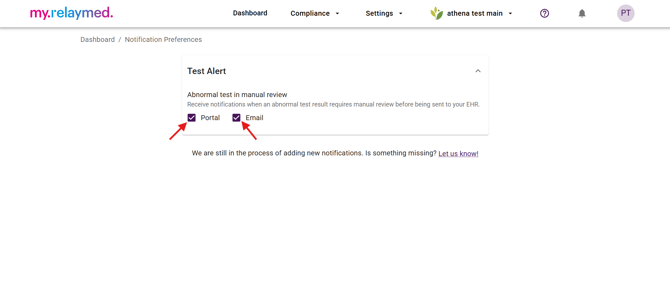
To opt in to a notification, simply click the checkbox of the notification event and type you would like to receive, your settings are saved instantly after any changes.
Requesting new notification events
If you feel that there is a notification event missing from the list that you could benefit from, you can send us your suggestions. To find the suggestion form, navigate to the bottom of the notification preferences page and click the "Let us know!" text.
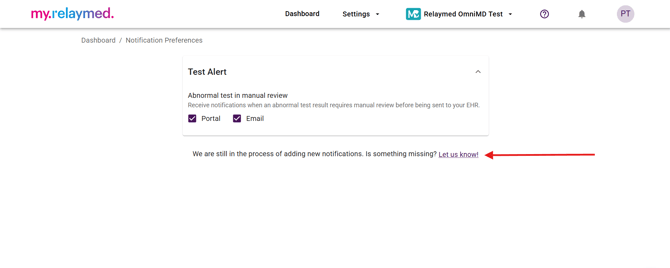
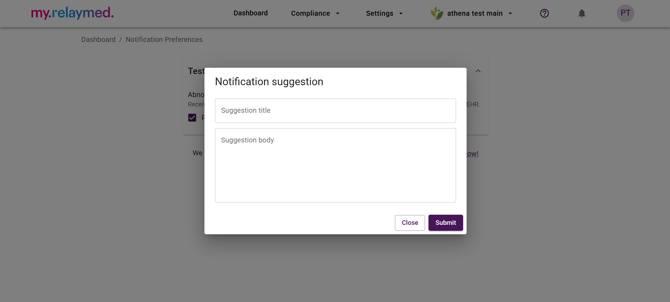
Fill out the title and body of the form to describe your idea for a new notification and Relaymed's engineering team will review this feedback.
Resolving notifications
Some notifications may require action from you or another member of your organization. If your Relaymed account has sufficient privileges to resolve a notification, there will be a "Mark as Resolved" button on the notification. Once resolved, this notification will be marked as resolved for all users who received the notification. If your Relaymed account does not have sufficient privileges to resolve a notification, the notification will not have a resolve button, but it will still be updated to let you know when someone else resolves it.
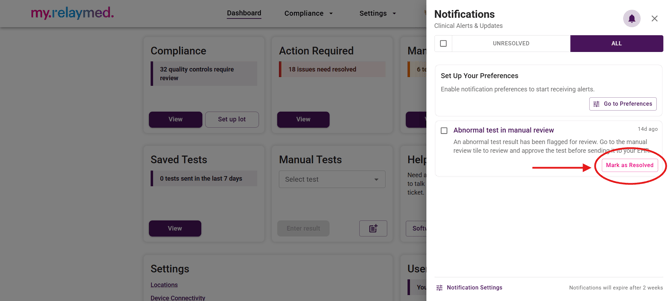
The sole purpose of this feature is to make it easy for you and your team to stay on the same page as to what notifications have been addressed. Resolving a notification does not do anything beyond marking the notification as resolved. Once a notification is resolved it cannot be undone.
You may filter your notifications to show only unresolved notifications by clicking the unresolved filter above the notification list.
Dismissing notifications
All portal notifications can be dismissed using the checkbox next to each notification or the checkbox in the filters tab to select all. After selecting notifications, the dismiss button will become visible above the notification list. Dismissing notifications will permanently delete notifications for that user; this will have no effect on another user's notifications.
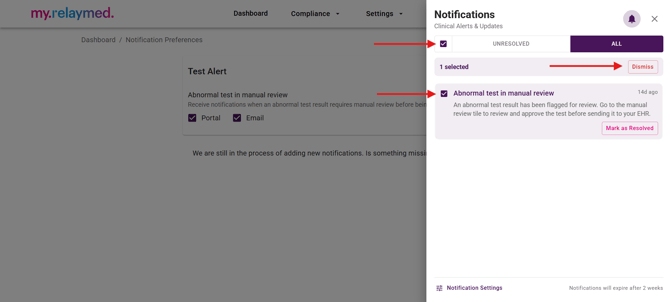
Each notification will be dismissed automatically two weeks after its creation.
Notification links
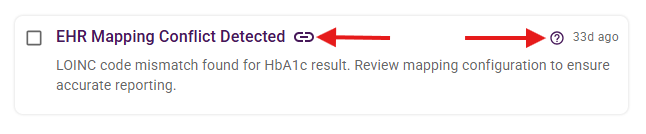
Some notifications will have purple titles with a link icon next to it, this signifies that the title is a clickable link that brings you to where you may take action on that notification. For example, a "Test in Action Required" notification will have a link to the action required page so you may review that test.
There may also be a question mark icon in the top right side of the notification. This is a link to an article in the Relaymed Knowledge Base relevant to that notification.