
Relaymed integrates directly with the Binx io device. Your organization will receive unique credentials, which can be used across all Binx units. Each device is identified individually by its serial number.
Stage 1 - Configure the Device:
Step 1: Add Device
-
⚠️ Serial Number
The correct serial number must be entered for each unit. You can find the serial number:
- On the rear of the instrument
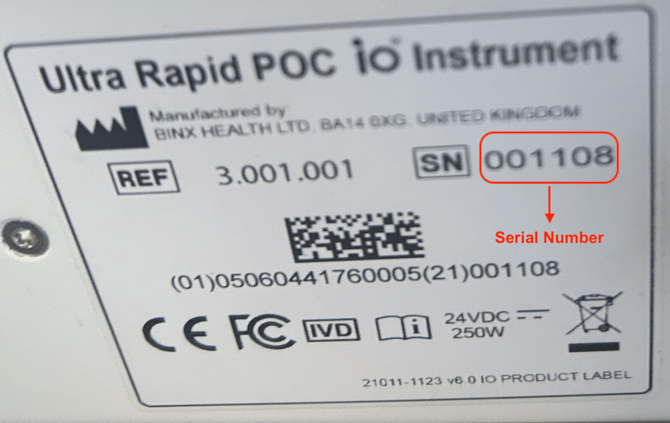
- On the rear of the instrument
-
- In the About menu option
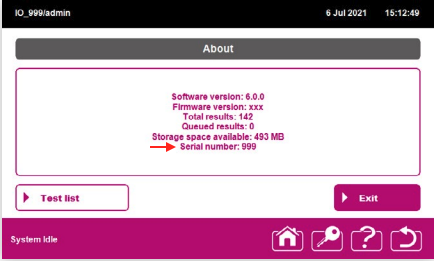
- In the About menu option
Step 2: Obtain Credentials
-
If this is your first Binx io device, your credentials will be sent securely within 1–2 business days.
-
If you have previously connected a Binx io device, you can use the same credentials for all additional units.
Note: Each new device must still be added in myRelaymed using its serial number to function correctly.
Step 3. Set up the Binx io With Your Credentials
-
Connect the Binx io to an Ethernet port
-
An SFTP plugin is required to complete this step.
-
If the SFTP plugin is already installed, you can proceed with entering your credentials on the device.
-
If it is not installed, please contact a Binx to arrange a site visit.
-
- Add your credentials on the Binx io:
-
-
Log in as Admin.
-
Click Configuration.
-
Select Server Settings.
-
Review the list of configured plugins (the SFTP plugin will appear here if already configured).
-
Click Add New.
-
Open the Protocol dropdown menu (if the plugin is installed but not yet configured, it will appear here). Select SFTP.
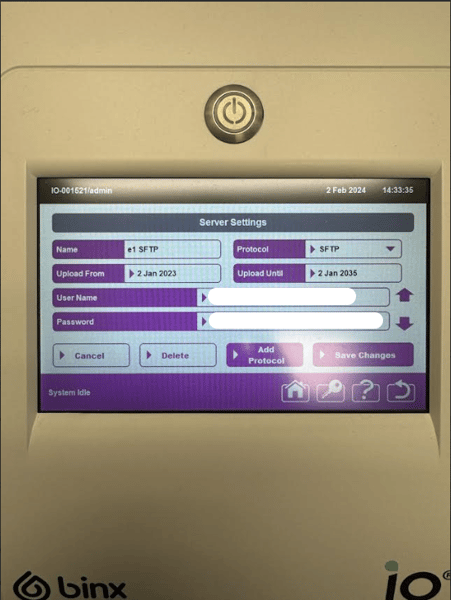
- Enter the Following information under server settings:
- User Name: (This is the SFTP that will be provided by Relaymed)
- Password: (This is provided by Relaymed when the username is sent)
- Server: connect.myrelaymed.com
- Port: 222
- Hit "Save Changes" once you have completed the server settings.
-
Step 4: Test the connection
-
Binx would usually provide a demo cartridge that can be used to test the connection.
-
Send a test through and verify it appears in the myRelaymed portal
Additional devices
-
If you have multiple Binx io units, make sure you add each unit separately in the myRelaymed portal.
-
Use each unit unique Serial Number.
-
The same SFTP credentials can be used across all units.
Notes:
Resetting the Binx IO if results stop passing
- Power the instrument off
- Unplug the power cable from the back of the unit
- Wait about 1 minute
- Plug the power cable back in
- Power the instrument back on
- Run a demo cart
- Confirm whether the results transfer successfully