
How it works
The Compliance menu on your myrelaymed dashboard brings together three tools for managing your lab's QC process.
- Lot Setup — define expected reference ranges for each control lot.
- QC Results — review QC results sent automatically from your devices.
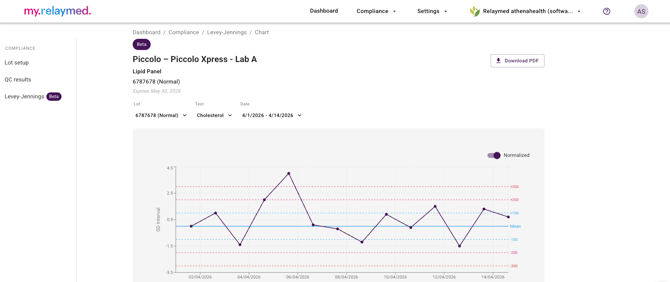
- Levey-Jennings — visualize trends over time to spot drift or shifts early.
Typical flow:
Add a control lot setup → QC results arrive and are linked → review and accept or reject → monitor trends in Levey-Jennings.
Lot set up
-
Roles: Setting up control lots reference ranges is available for Administrators and Configuration Managers
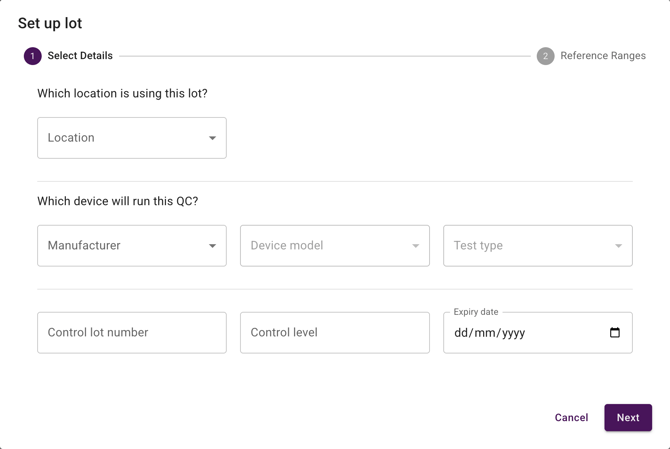
- Navigate to Compliance / Lot setup and click Set up lot
- Fill in the information about the device running the QC and the control lot number and expiry
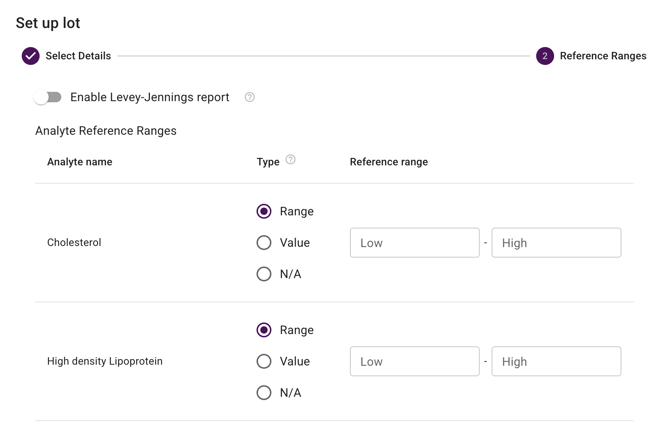
- In the next stage, fill in the reference ranges
- Toggle Enable Levey-Jennings report if relevant
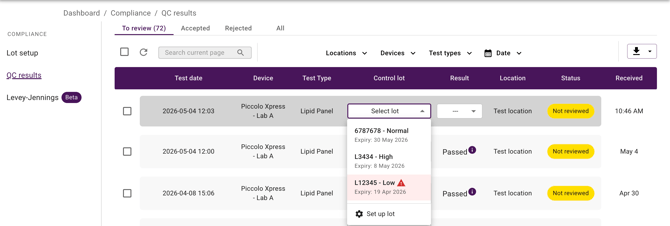
After running a QC test, the result appears in the QC section of the portal. Simply link your control lot setup to the QC test by selecting it from the dropdown.
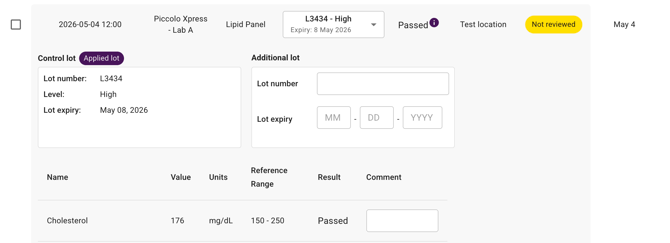
Add any notes and Accept your QC test.
Levey-Jennings
- Navigate to: Compliance / Levey-Jennings
- Select your device and date ranges:
Important Notes:
-
The QC results will still be calculated even if the lot is past its expiry date. This is intentional, the portal will show a visual warning to let users know the material is expired and needs to be updated.
-
If the expected value from the device can included a comparison symbol (such as <, >, ≤, or ≥), the range can be added in multiple ways.
-
For > or ≥, enter a range only in the Low Range field.
-
-
-
For < or ≤, enter a range only in the High Range field.
-
If both range fields are completed, the analyte result will be calculated without the comparison symbol.
-
If the range consists of specific set values, you can enter multiple values in the value type field. For example, if the QC passes when the range is between ≤1.005 and 1.010, but the device outputs discrete values (≤1.005 or 1.010), these individual values can be listed in the value type field.
-
-
Notes:
Each lot configuration requires the following unique combination of fields:
- Location
- Device
- Test type
- Lot number
- Level
No duplicate lots are allowed. If all five fields match an existing configuration, the system will prevent a new one from being created.
Lot number and level are treated as a unique pair. A new kit level will always correspond to a new lot entry — so if a kit is updated to a new level, a new lot configuration will need to be created for it.
Only Administrators and Lot Configuration Managers can set up lots. Operators will see the matched lot configuration automatically populated on the QC if the lot number and level are recognized. If the device is unable to provide these details, the operator will see a blank dropdown and can either manually select the correct lot configuration if one exists, or contact their Administrator or Configuration Manager to create a new one.
Deleting an expired lot will remove the setup and any calculated results based on the ranges for any attached QCs.