
Configuration Stages

To configure the Beckman Coulter Access 2 to connect to Relaymed the following configuration stages are required:
- Connection Configuration
- Serial to Ethernet Adapter Configuration
- Add device to Relaymed Link Relaymed Software Agent
Stage 1: Connection Configuration
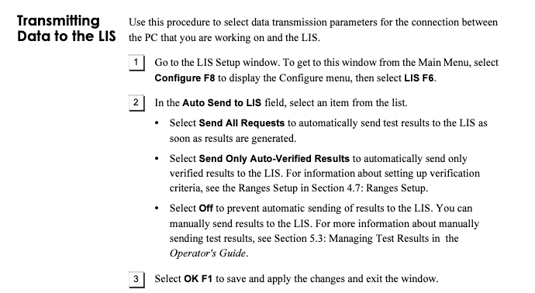
Step 1: To get to this window from the Main Menu, select Configure F8 to display the
Configure menu, then select LIS F6.
Step 2: On the "LIS Setup" page verify the following options are configured:
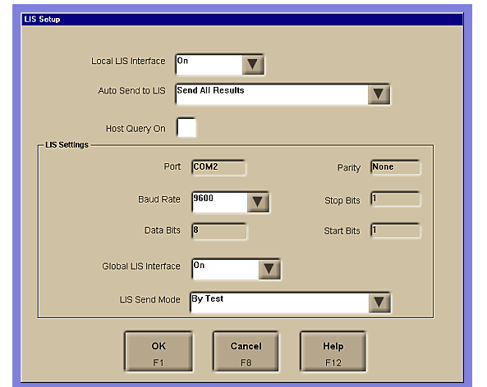
- Local LIS Interface: On
- Auto Send to LIS: Send All Results
- Baud Rate: 9600
- Data Bits: 8
- Stop Bits: 1
- Parity: None
- Global LIS Interface:On
- LIS Send Mode: By Test
Step 3: To connect to the Network, connect the Serial to Ethernet adapter to the AcT Diff 2 and an available Ethernet Port.
Stage 2: Serial to Ethernet Adapter Configuration
Step 1: Connect the Serial to Ethernet Adapter directly to the RS232 Port on the rear of the Access 2. (Not to the workstation that is connected to the Beckman analyzer).
Step 2: Follow the Serial to Ethernet Adapter configuration guide to correctly configure the adapter to connect to your network.
Stage 3: Add Device to Relaymed
For practices using the Relaymed Link, log in to your Relaymed Portal and follow these steps:
Adding a Device to Relaymed Link
For practices using the Relaymed Software Agent, open the server or PC where the agent is installed and follow these steps:
Adding a Device to Software Agent
Note on Quality Controls
In order for Relaymed to process a test as QC the Patient Id field needs to contain: "QC" or "OIM"