
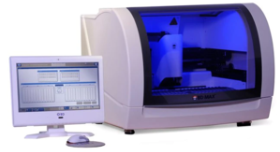
Stage 1: Adapter set up and attachment:
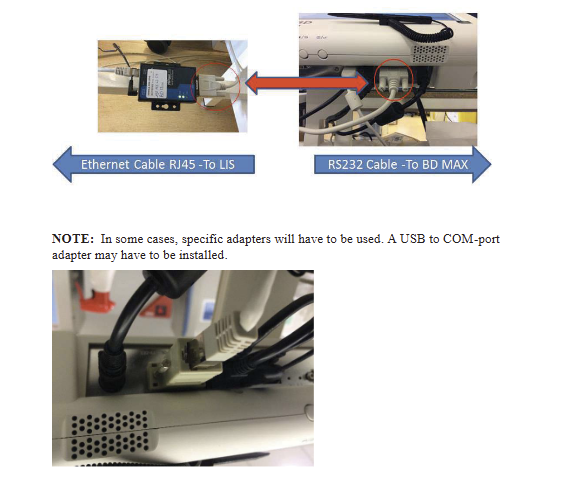
Step 1: Connect the Serial to Ethernet RS232 Adapter to the serial output on BD Max device (not the monitor)
Step 2: Plug the other end of the Serial to Ethernet RS232 Adapter to an Ethernet cable
Note: Shown below is where the Serial to Ethernet RS232 Adapter should be connected (may require USB A to RS232 adapter as well)
Stage 2: Configure Settings
Step 1: Across the bottom of the BD Max screen select the "Configuration" icon (pictured below)
Step 2: From Configuration navigate to the "External Devices".
Step 3: On the "External Devices" tab (pictured below) ensure the following settings are configured:
LIS Configuration
-
- Select "Enable LIS"
- Baud: 9600
- Parity: None
- Data Bits: 8
- Stop Bits: 1
Logical
-
- Deselect "LIS Solicited Results"
- Enable all the "Upload" options
- Deselect "Packed Frames"
Step 4: You can confirm the settings and exit the configuration screen
Stage 3: Add Device to the Relaymed Link or Relaymed Software Agent
For practices using the Relaymed Link, log in to your Relaymed Portal and follow these steps:
Adding a Device to Relaymed Link
For practices using the Relaymed Software Agent, open the server or PC where the agent is installed and follow these steps:
Adding a Device to Software Agent